Showing posts with label Windows 8. Show all posts
Showing posts with label Windows 8. Show all posts
Tuesday, August 4, 2015
Download e instalação do Windows 8.1 Pro
Chegou o Windows 8.1
Chegou ontem, dia 18 de outubro, o Windows 8.1 a Portugal. Tal como a Microsoft tinha prometido, este seria uma atualização gratuita para os usuários do Windows 8. Como tal, todos os usuários do Windows 8 poderão fazer a atulização para o 8.1 gratuitamente a partir da Windows Store. Saiba mais aqui
Para os utilizadores do Windows XP, Vista e 7 terão de transferir o ISO de instalação do Windows 8.1 e instalar através desse ISO que poderá passar para uma pendrive ou gravar num DVD para fazer a instalação
Transferir o Windows 8.1
A Microsoft afirmou que não iria disponibilizar ISO do Windows 8.1 (apenas versão Enterprise), mas uma vez instalado, através de métodos específicos, é possível formar um ISO do Windows. Para transferir o Windows 8.1 irá necessitar do BitTorrent ou outros da mesma classe que permitam o download de torrents.
Windows 8.1 Pro (X64) - Português (Portugal)
Windows 8.1 Pro / Core (x86 + x64) - Português (Brasil)*
Windows 8.1 Pro / Core (x86 + x64) - Português (Brasil)*
*Este ISO contém a versão Windows 8.1 Pro x86 , Windows 8.1 Pro x64, Windows 8.1 Core x86 e Windows 8.1 Core x64. Estou a tentar arranjar individuais para ser mais fácil. O ISO pesa cerca de 4GB
Uma vez terminada a transferência, passe para uma pendrive (com mais de 4GB) ou use um DVD e grave o ISO nele.
Instalar o Windows 8.1
Uma vez que a sua pendrive está pronta, insira numa porta USB e reinicie o PC.
Nota: Independentemente do tipo de instalação (Atualização ou Avançada) convém sempre fazer uma backup dos ficheiros pessoais.
Reinicie o PC irá surgir uma imagem como a seguinte.
Nota: Se o PC não arrancar pela pendrive poderá ter de ir às configurações da BIOS


Clique em Seguinte e depois Instalar Agora
Insira uma chave do Windows se for pedida. Use esta XHQ8N-C3MCJ-RQXB6-WCHYG-C9WKB
Esta chave é apenas para instalação e não para ativação

Aceite os termos de licenciamento e Seguinte

Escolha uma das opções
- Actualização. Esta opção substitui a versão actual do Windows pelo Windows 8 e mantém os seus ficheiros, definições e programas no computador.
- Personalizar. Esta opção substitui a versão actual do Windows pelo Windows 8 mas não preserva os seus ficheiros, definições e programas. Por essa razão, por vezes é indicada como instalação limpa.
Agora aguarde enquanto a instalação ocorre. Pode demorar de 20min a várias horas dependendo de PC para PC.


Agora é hora de personalizar o Windows
Escolha um tema e dê nome ao PC. Seguinte

Agora configure o Windows. Pode usar as configurações rápidas.

Inicie sessão na sua conta Microsoft (live, outlook, hotmail ...)

Informações sobre a conexão Windows 8.1 - SkyDrive

Aguarde ...

Pronto para usar ...


Atualizar do Windows 8 para Windows 8.1
Chegou o Windows 8.1

 Chegou ontem, dia 18 de outubro, o Windows 8.1 a Portugal. Tal como a Microsoft tinha prometido, este seria uma atualização gratuita para os usuários do Windows 8. Além disso, é muito fácil de atualizar (mas somente para alguns visto que já há muita gente a queixar-se de problemas). Antes de começar, é obrigatório ter o Windows 8 atualizado. Como posso atualizar o meu Windows 8? É muito simples. Arraste o rato para o lado direito canto superior/inferior para aparecer a barra lateral. Clique em Defenições < Alterar defenições do PC
Irá abrir uma app do Windows que permite configurar o mesmo. Clique no último item do Menu do lado esquero "Windows Updates". Procure por novas atualizações e instale. Será necessário reiniciar o PC. Porquê ter de atualizar o PC? A Microsoft já tinha avisado que para fazer este upgrade do Windows 8 para o 8.1 seria preciso ter o 8 completamente atualizado. Mas a principal atualização em causa é a KB 2871389 que prepara o Windows para a atualização. Apenas com esta, vai ser possivel instalar o Windows 8.1 através do Windows Store. Pode baixar a atualização através deste link

 Agora deverá estar pronto para começar! Vá ao Menu Iniciar e clique na app Loja
Logo na Página Inicial da app irá surgir uma imagem como a seguinte:
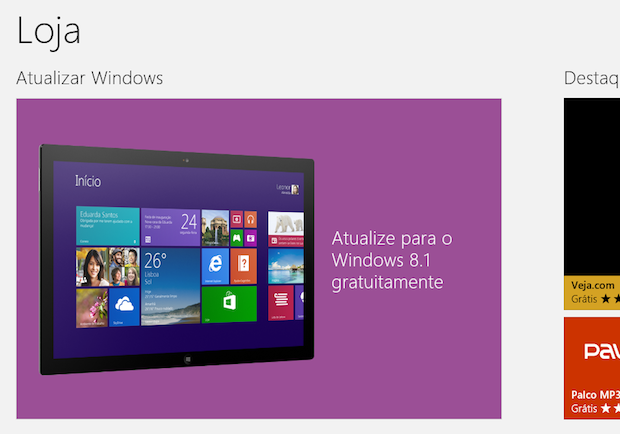 Clique na imagem com o texto "Atualize para o Windows 8.1 gratuitamente"
 Clique em "Transferir"/"Baixar"
Quando o download terminar, o assistente de instalação informa que o computador precisa ser reiniciado. Guarde tudo o que estiver a fazer e clique em “Reiniciar Agora”

A instalação irá começar!
Windows 8.x Wireless problem after sleep or hibernate
Every time I set my Windows 8.x to sleep or hibernate, I face Wireless authentication problems.
I have a old PC but equipped with Windows 8.1 Update 1 and today I noticed a problem. Every time I hibernate or set PC to sleep, and then turn it on, I face Wireless authentication problems. I am not sure if it is a Windows problem, a driver problem or if it is a PC's firmware and Windows 8 compatibility problem.
All I know is that only happens with Windows 8.x, in Windows 7 no problem. I also noticed this problem in another PC I have, a laptop.
The way as I fix it, is:
Doing these steps every time, is annoying. I found out a solution, however there must be secondary problems for Laptops or Notebooks when you apply my solution propose.
Basically, what I do is to disable the option which tells Windows to turn off my Network adapter. By default the Windows turn it off, but for some reason can't wake it it properly.
How to fix it?
Go back to Device Manager. Go to Network Adapters < right-click your Wireless Adapter < Properties < Power Management tab and finally disable the first check-box Allow the computer to turn off this device to save power
The special case: Laptops and Notebooks
"...however there must be secondary problems for Laptops or Notebooks when you apply my solution propose."
Now I would like to explain the my sentence's meaning. I once had a problem in my Laptop because of my network adapter. Because the option turn off the device was disabled, the Sleep and Hibernate options didn't work as they should. I mean, the PC screen was black and the led lights switched off [in case of sleep, the power light blinks] but after a few seconds it wake up alone. What I suggest to you, try my propose and if you face problems like this, just enable the option to turn off the device and maybe avoid Sleep/Hibernate functions.
Any question send e-mail to antivirusdownloadfullversion@outlook.com
All I know is that only happens with Windows 8.x, in Windows 7 no problem. I also noticed this problem in another PC I have, a laptop.
The way as I fix it, is:
- Restarting Windows
- Go to Device Manager (by pressing keys Windows + X, a Menu show up in the bottom, left side), and disable my Wireless Network Adapter. Then I enable it again and finally I can connect and use Internet. In other words, I restart the driver.
Doing these steps every time, is annoying. I found out a solution, however there must be secondary problems for Laptops or Notebooks when you apply my solution propose.
Basically, what I do is to disable the option which tells Windows to turn off my Network adapter. By default the Windows turn it off, but for some reason can't wake it it properly.
How to fix it?
Go back to Device Manager. Go to Network Adapters < right-click your Wireless Adapter < Properties < Power Management tab and finally disable the first check-box Allow the computer to turn off this device to save power
The special case: Laptops and Notebooks
"...however there must be secondary problems for Laptops or Notebooks when you apply my solution propose."
Now I would like to explain the my sentence's meaning. I once had a problem in my Laptop because of my network adapter. Because the option turn off the device was disabled, the Sleep and Hibernate options didn't work as they should. I mean, the PC screen was black and the led lights switched off [in case of sleep, the power light blinks] but after a few seconds it wake up alone. What I suggest to you, try my propose and if you face problems like this, just enable the option to turn off the device and maybe avoid Sleep/Hibernate functions.
Any question send e-mail to antivirusdownloadfullversion@outlook.com
Subscribe to:
Posts (Atom)