Showing posts with label Office 2016. Show all posts
Showing posts with label Office 2016. Show all posts
Tuesday, August 4, 2015
Office 2016 Public Preview Download

During the Ignite conference, Microsoft has pushed Office 2016 from Consumer Preview to Public Preview branch. Now, you have 180 days to test this preview, unless you have Office 365 subscription. The Consumer Preview was limited to 7 days.
The installation process is really simple, known as Click-to-Run
Once you open the installation executable file, a small orange window will show up centered on screen and will complete the installation on background process. This installation is independent of any configuration.

Discuss: Click-to-run
This might be a wonderful feature for users who have no experiences with software installation and who see the configuration steps like a 'nerd thing'. On the other hand, this forces the user to install ALL OFFICE PRODUCTS, Word, PowerPoint and so on.. I really hope Microsoft bring back the image files when Office get's final shape and arrive on the market, providing to the user the ability to customize the installation process like it was possible on previous versions. What do you think about this? I would like to hear your opinion :)
Download
x86 x64

Activate Office 2016

I am glad to announce this post is being updated with a new method supporting the very latest Office builds, stay tuned.
**
This year Microsoft is pushing a new updated Office version. Not only for Windows PC platform, but also for Android, iOS, Mac and Windows Phone. At this moment, Office for PC Desktop is on preview shape, which means is not completed yet. As a public preview you can help Microsoft catching some bugs and sending your helpfull feedback by installing Office 2016 on your PC. However, the licence is extended for 180 days only (unless you have Office 365 subscription), and so in this tutorial I will explain you to have Office 2016 lifetime. Office for PC stills on Preview shape, still has limited licence extended for 180 days.
First of all, you will download the Office setup. If you have it installed, to make sure this tutorial works, please remove your current O16. Below, select your language, edition and Office 32 bits (recommended) or 64 bits (soon). Click Download and small executable file will be downloaded. The new Office setups are known as Click-to-Run. Instead of downloading a full ISO, you download a very small executable file which automatically will download Office packages and install it on your Windows.
x86 x64
*Under construction - ignore*The Office you have installed has a Retail licence. First of all, we need to remove all licences (Retail) and install a Volume Licence. This is necessary because KMS only support VL.

Re-Loader 1.2
While KMSPico or KMSNano, the most well known activators for Office 2013 and Windows 8, don't support Office 2016, there is an alternative: Re-Loader
Re-Loader is an activator which supports a very long list of Windows OS, including Server editions.. all Office versions since 2010 and other. well, I won't show full list because what really matters here is Office 2016 Preview, which is fully supported.
How to use?
Download the activator tool here (updated last time 5th July, version 1.3 RC 9)
Note: Before extracting, disable your antivirus, this is very important
The file come in RAR, so start by extracting the files (I don't recommend you run it directly from WinRar or similar programs)

Check the programs you wish to activate and click Activate

Let the program work. You are done!
Troubleshooting
Re-Loader activator don't allow me to tick Office 2016
If the activator is not allowing you to mark O16 box, you can try to fix it by uninstalling Office and performing a clean installation. You can uninstall Office directly from the Control Panel. After uninstalling, I recommend you to reboot Windows. Then download Click-to-Run (Office 2016 installer) and begin a new installation. Afterwards, when office prompt you that installation is completed, try to activate it. If the problem persists you may have to wait for a newer version of Re-Loader. Keep in mind that Office is getting almost daily updates and the activator may not be compatible with latest builds. Meanwhile, I am working in a workaround for this.

Office 16 2016 preview beta desktop version 16.0.3823.1005 16.0 how to activate 365 plus pro technical preview
Monday, August 3, 2015
Office 2016 Preview

A few days ago, Office 2016 was around but only accessible for selected users. Now, Microsoft allows anyone to test Office 2016 Desktop apps.
Over at Microsoft’s Connect site you can simply sign-up and acknowledge a non-disclosure agreement to get access to the Office 2016 bits.
Microsoft first released January build but was "refreshed" with February Build, released in March. Unlike in January, Microsoft this time released two distinct versions, the Office 2016 for Home and Office 2016 for Business

For join the program of one of the products above, please visit this page
There, you will find a couple of Office products which include Office 2016 for Home and for Business. Click in the hyperlink Join, you will be redirected to a new page where you must read terms and conditions, fill the form and click Submit


Open and extract the files. Start by running the OfficePreview.exe
I have a Preview Office version
If you had access to previous Office Preview versions (v16.0.xxx) and you DO have an existing Preview version of Office on your machine (v16.0.xxx), plus your version is lower than the currently available, select Update Now.
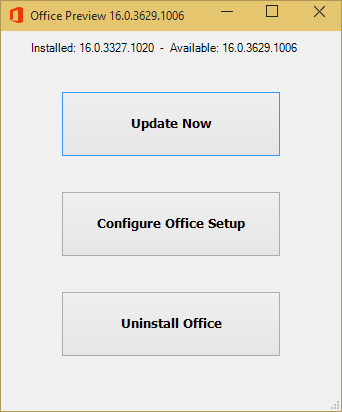
I don't have a Preview Office Version
If this is a first run install and you DO NOT have an existing Preview version of Office on your machine (v16.0.xxxx.xxxx), select Configure Office Setup.

As this is a first-run install, you will need to select your options.
Select the appropriate options for your subscription type and architecture. If you have a valid subscription for Visio and/or Project please select those as well. Select your primary language and any additional language(s) you wish to install.
When complete, select Install Now

Installation proceed
Office will install in a background process. You will face at first the splash screen as shown below

After this the installation will proceed in background process.

After the installation...
You will get a notification telling you the installation finished! When you run it for the first time, like PowerPoint, or Word... you get a window asking for a e-mail with a Office 365 subscription. If you don't have any licence, check this post!


office 2016 preview desktop Office Consumer Preview Office Technical Preview 16.0 16 2015 install download Microsoft February build 16.0.3823.1005 16.0.3823.1010 16.0.3930.1004
Subscribe to:
Posts (Atom)